CodeB SmartLogin lets an employee sign in to a domain-joined Windows PC with no password and no software on the PC. The CodeB Wallet app on an Android phone holds a virtual PKI smart card; Windows enrols a certificate from your own certificate authority (AD CS) onto it, and the user logs on by holding the unlocked phone on an NFC reader — through Windows’ own smart-card sign-in.
What is passwordless logon with the phone as a PKI smart card?
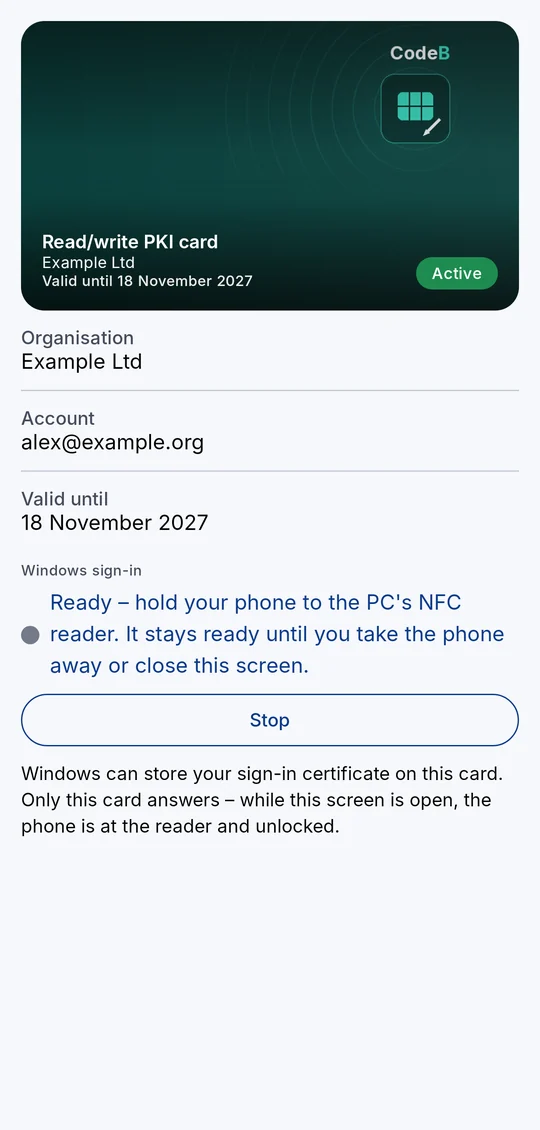
Passwordless logon with the phone as a PKI smart card turns an Android phone running the CodeB Wallet (myEUID) into a contactless Windows logon smart card. The phone holds a virtual read/write PKI card that carries an X.509 certificate issued by your company’s Windows certificate authority. At the logon screen the user holds the unlocked phone on a normal NFC reader and signs in with the card PIN. Windows treats the phone exactly like a plastic PKI smart card.
The important part for most sites: this path needs no CodeB software and no card-reader driver on the PC. It uses the smart-card logon that is already built into Windows (the GIDS minidriver), so there is nothing to install on each workstation.
How does it work?
The phone presents itself to Windows as a standard contactless PKI smart card using Microsoft’s built-in GIDS smart-card support. Because Windows already ships the minidriver for GIDS cards, no driver and no CodeB component is needed on the workstation.
- The company’s Windows certificate authority (AD CS) issues a smart-card logon certificate. That certificate is enrolled onto the virtual PKI card inside the CodeB Wallet.
- The private key is generated and kept in the phone’s secure hardware. It never leaves the phone; the certificate on the card is only the public part.
- At logon Windows runs its normal certificate (smart-card) sign-in: it reads the certificate over NFC, has the phone sign a challenge, validates the chain and issues the Kerberos ticket. This is the same PKINIT flow used for any PKI smart card.
Because it is ordinary Windows smart-card logon, it works for local accounts, Active Directory domain accounts and hybrid (Entra ID) accounts wherever certificate logon is allowed, and it can be combined with Remote Desktop smart-card redirection.
What do you need?
| Requirement | Detail |
|---|---|
| Windows PC | Windows 10, Windows 11 or Windows Server 2016–2025, joined to the domain for AD logon. |
| Certificate authority | A Windows enterprise CA (Active Directory Certificate Services) with a smart-card logon certificate template. |
| NFC reader | Any PC/SC contactless reader — the same readers used for plastic NFC cards. |
| Phone | An Android phone with NFC and the CodeB Wallet app (myEUID, myeuid.app). |
| On the PC | Nothing. No CodeB SmartLogin install and no reader driver are required for this path. |
How do you set it up?
- In Active Directory Certificate Services, make sure an enterprise CA publishes a smart-card logon (or similar client-authentication) certificate template, exactly as for any plastic PKI smart card.
- In the CodeB Wallet app on the Android phone, add a read/write PKI card.
- Enrol a certificate from your Windows CA onto that card. The phone then holds a logon certificate whose chain your domain already trusts.
- At the Windows logon screen, hold the unlocked phone on the NFC reader and enter the card PIN. Windows performs its normal smart-card sign-in — passwordless, with no CodeB software on the PC.
The step-by-step enrolment inside the app is documented in the CodeB Wallet manual at myeuid.app/en/manual.html#pki-cards. The Windows side is standard certificate-based smart-card logon, so your existing AD CS templates and group policy apply unchanged.
Phone as a PKI smart card vs phone as a CodeB NFC card
CodeB offers two ways to log on with the phone. They are independent — choose by whether you want zero software on the PC or the richer CodeB audit and shared-account features.
| Phone as PKI smart card (this page) | Phone as CodeB NFC card (CAP1) | |
|---|---|---|
| Software on the PC | None (Windows built-in smart-card logon) | CodeB SmartLogin credential provider |
| Logon mechanism | Windows certificate logon (Kerberos PKINIT) | CodeB tile unlocks the Windows credentials |
| Needs a certificate authority | Yes (AD CS) | No |
| Audit record | Windows Security log | CodeB event log, IDs 1100 / 1101 |
| Shared accounts, several phones | Standard Windows smart-card rules | CodeB shared-account traceability |
Offline use and honest limits
- Android only. The CodeB Wallet is available for Android phones with NFC today.
- The phone must be unlocked and held on the reader for the tap to work.
- Offline: a user who has signed in before can log on with cached credentials when the domain controller is unreachable, as with any Windows logon. A first-time certificate logon needs the domain controller to be reachable.
- These logons are recorded in Windows’ own Security log. They do not appear in the CodeB audit events 1100/1101, because no CodeB component runs on the PC in this path.
Troubleshooting
The phone is not offered as a smart card
Check that the NFC reader is a working PC/SC reader and that the Windows Smart Card service is running. Hold the unlocked phone flat on the reader; the CodeB Wallet must have the read/write PKI card open.
A PIN is requested but logon fails
The logon certificate’s chain must be trusted by the domain and valid for smart-card logon. Confirm the CA certificate is published to the NTAuth store and that the certificate has not expired or been revoked.
It works online but not offline
Offline logon uses cached credentials and therefore only works for a user who has already logged on to that PC at least once while the domain was reachable.
Frequently asked questions
Do I need to install anything on each PC?
No. This path uses the smart-card logon built into Windows (the GIDS minidriver), so no CodeB SmartLogin install and no card-reader driver are needed on the workstation. You only need a certificate authority and an NFC reader.
Is the private key safe on the phone?
Yes. The private key is generated and stored in the phone’s secure hardware and never leaves it. Only the certificate (the public part) is read over NFC, and every logon is a fresh signed challenge.
Which Windows accounts can it log on to?
Local accounts, Active Directory domain accounts and hybrid Entra ID accounts, wherever Windows certificate (smart-card) logon is permitted. It also works over Remote Desktop with smart-card redirection.
How is this different from the CodeB card logon?
The PKI path uses Windows’ own certificate logon and leaves no CodeB component on the PC; its logons appear in the Windows Security log. The CodeB NFC card path uses the CodeB tile and records logons in the CodeB audit events 1100/1101, with shared-account traceability. See the comparison above.